

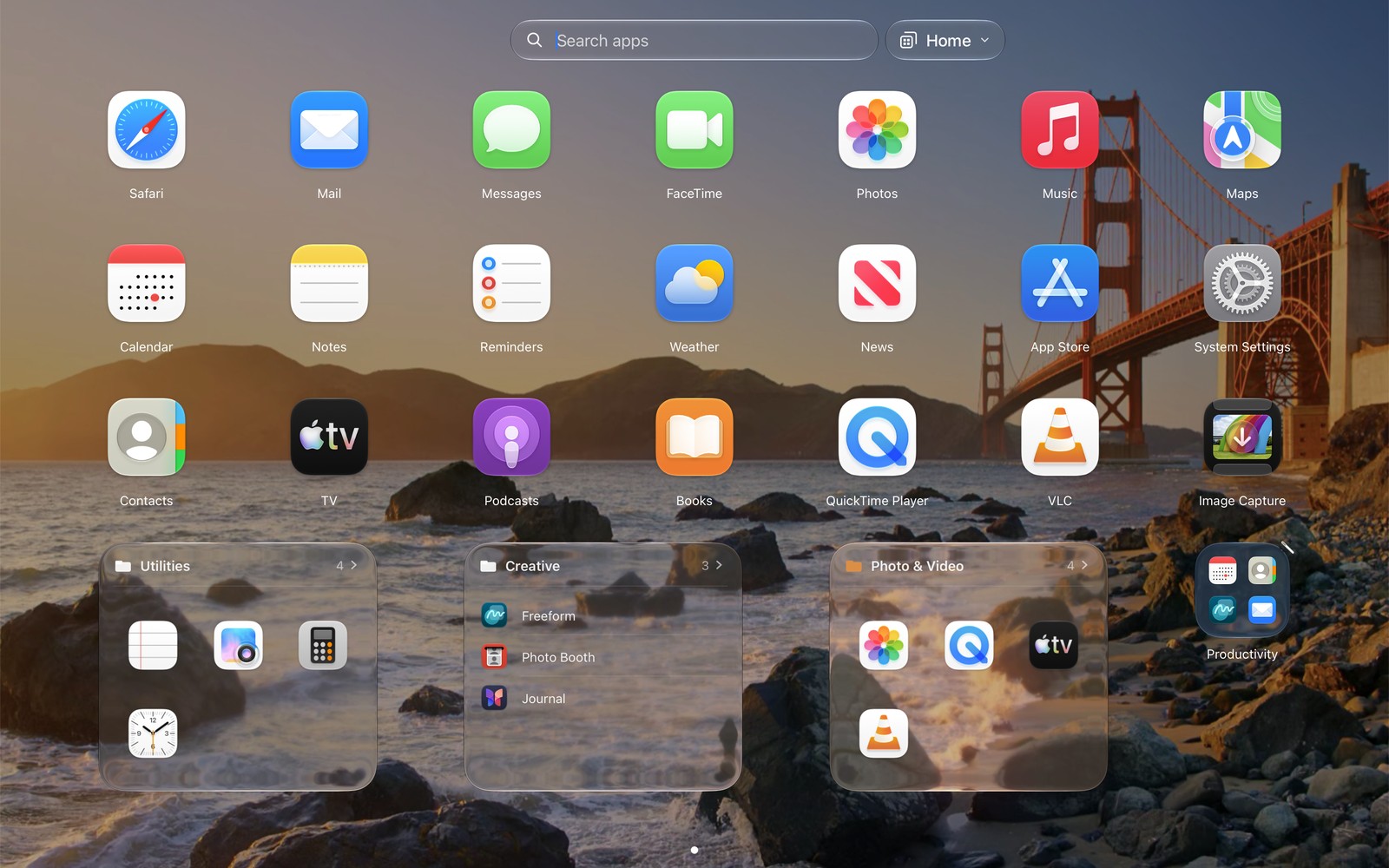
The launcher. Yes, it looks familiar, just with a few upgrades.
When Apple discontinued Launchpad in macOS 26, my fingers kept pinching the trackpad and got nothing. I kept trying for weeks and had no success. It was a small annoyance for me.
I tried Apple’s new interface. I opened apps through Spotlight search and apps in the dock’s Applications folder. I tried to tell myself I liked their new interface, just as people often tell themselves they like a new hairstyle. It took a year of telling myself, “It’s fine,” before the release of macOS 27, which no longer offered Launchpad as an option. At that point, I decided to bring Launchpad back myself.
I’m not the first person to face and overcome this challenge. There are other Launchpad alternatives, and I explored some of these options. As a Mac developer with more than 10 years of experience, when something frustrates me, I start thinking about how I’d fix it.
So, this is about ModusPad, my take on a Launchpad replacement. My idea was to create something similar to other grid-style launchers for Mac, but I ended up with an app that changes the launcher, and the apps that open, around the tasks I’m working on. Let me show you.
First, the boring part (that has to be perfect)
The launcher is designed to make it easy to start apps. If that part is even a little off, nothing else matters. Key features of the launcher include a full-screen grid view with several pages, folders, search and drag & drop. To add a new folder, drag one app icon onto another. To select and move multiple apps at once, ⌘-click each app or drag a selection box around the apps.
The most useful feature here, if not the most exciting, is that ModusPad has an import function that allows you to add your existing pages and folders from a previous version of Launchpad if you used Launchpad on older versions of macOS. You can import your pages and folders when you first install ModusPad or later from ModusPad’s Settings. Your old pages and folders come back as they were. You won’t need to rebuild your “Utilities 2 (real)” folder.
Opening it should feel like muscle memory too, so there are lots of possibilities:
- ⌥ Space or any other key combination you choose;
- fn F4;
- a hot corner, or the notch (finally, a use for the notch);
- a trackpad gesture: four-finger pinch or three-finger swipe down.
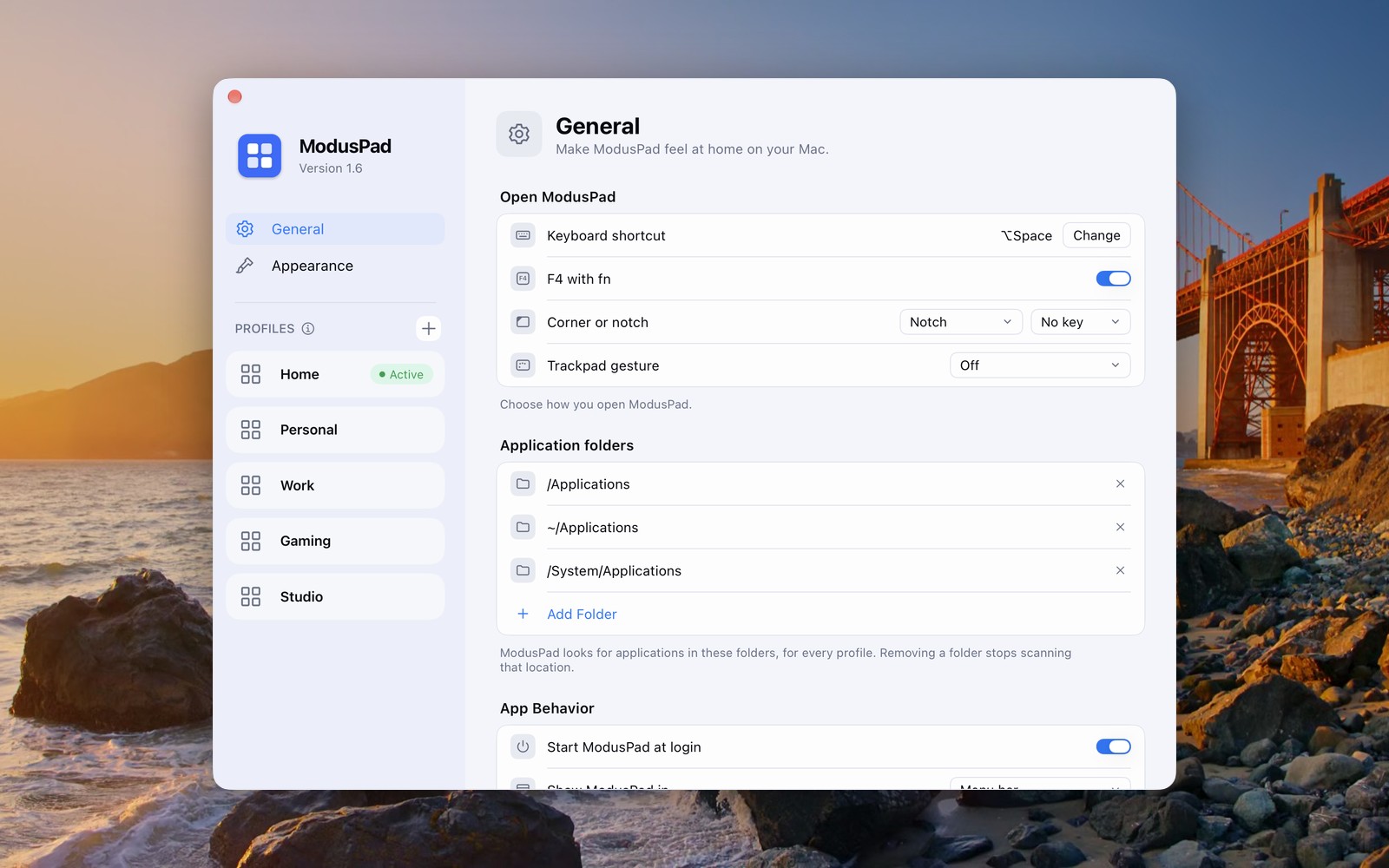
Pick one, pick all. My fingers went back to pinching on day one.
The real idea: one Mac, several lives
Here’s something I didn’t like about Launchpad when it was available. I use my Mac for work during business hours. After that, it’s music, messages, videos and side projects. On weekends, it’s games, and I feel a little guilty about it. But the 200 apps I had in Launchpad always showed up. Other work-related apps, such as Xcode, were also displayed on my Mac screen over the weekend.
So there are profiles in ModusPad. Profiles can be Work, Home, Gaming, Studio, and other custom profiles you set up. Each profile has its own layout, and you can hide and show different apps in different profiles. For example, the Work profile shows a team chat app, Figma, Xcode, and a web browser. The Home profile does not show the team chat app. Bliss.
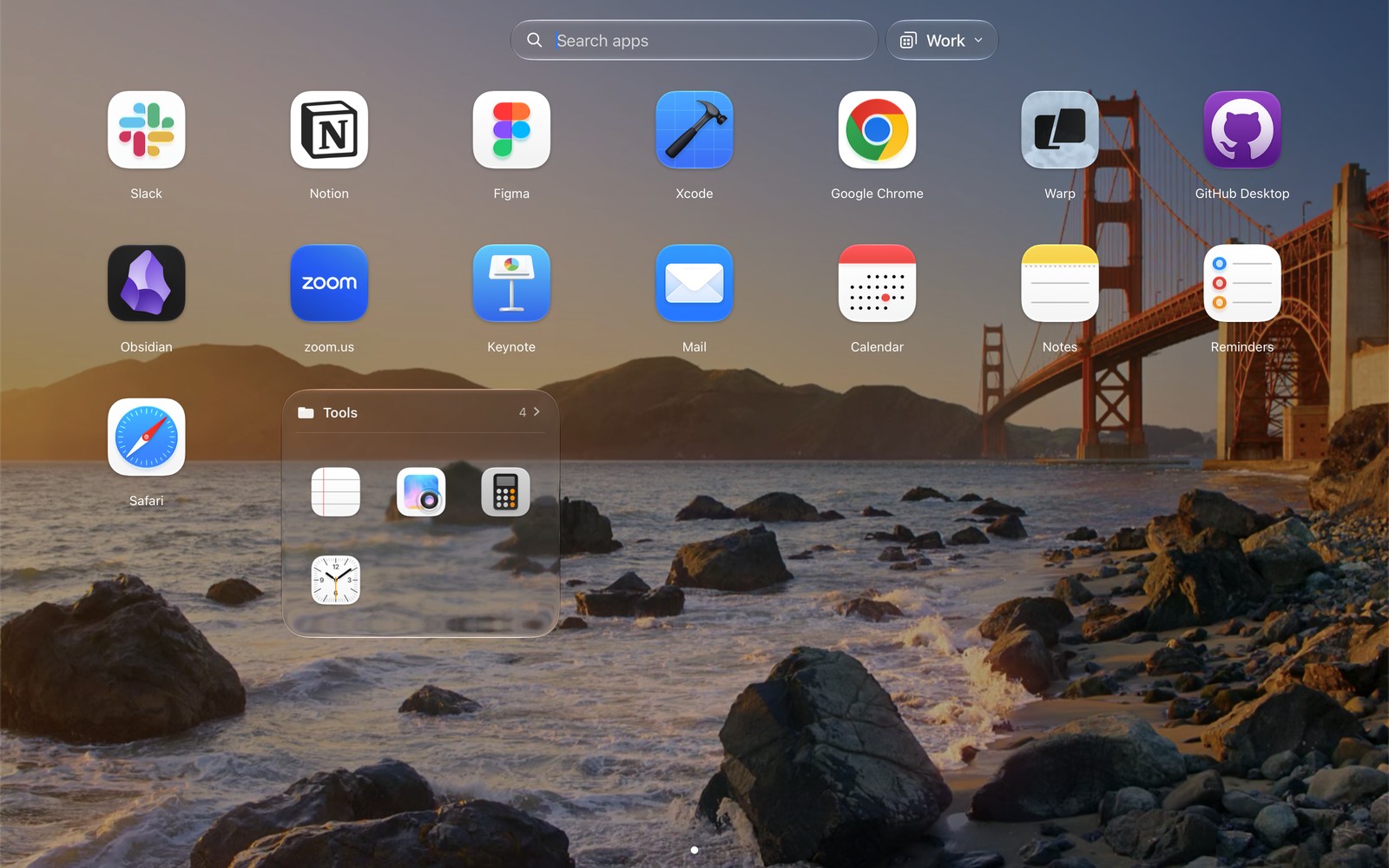
The Work profile. Fifteen apps and a folder. Nothing to scroll past.
There is an app list in Settings that includes all apps, as well as search and Visible/Hidden filters, so you can easily hide apps from a profile without hunting for them one by one.
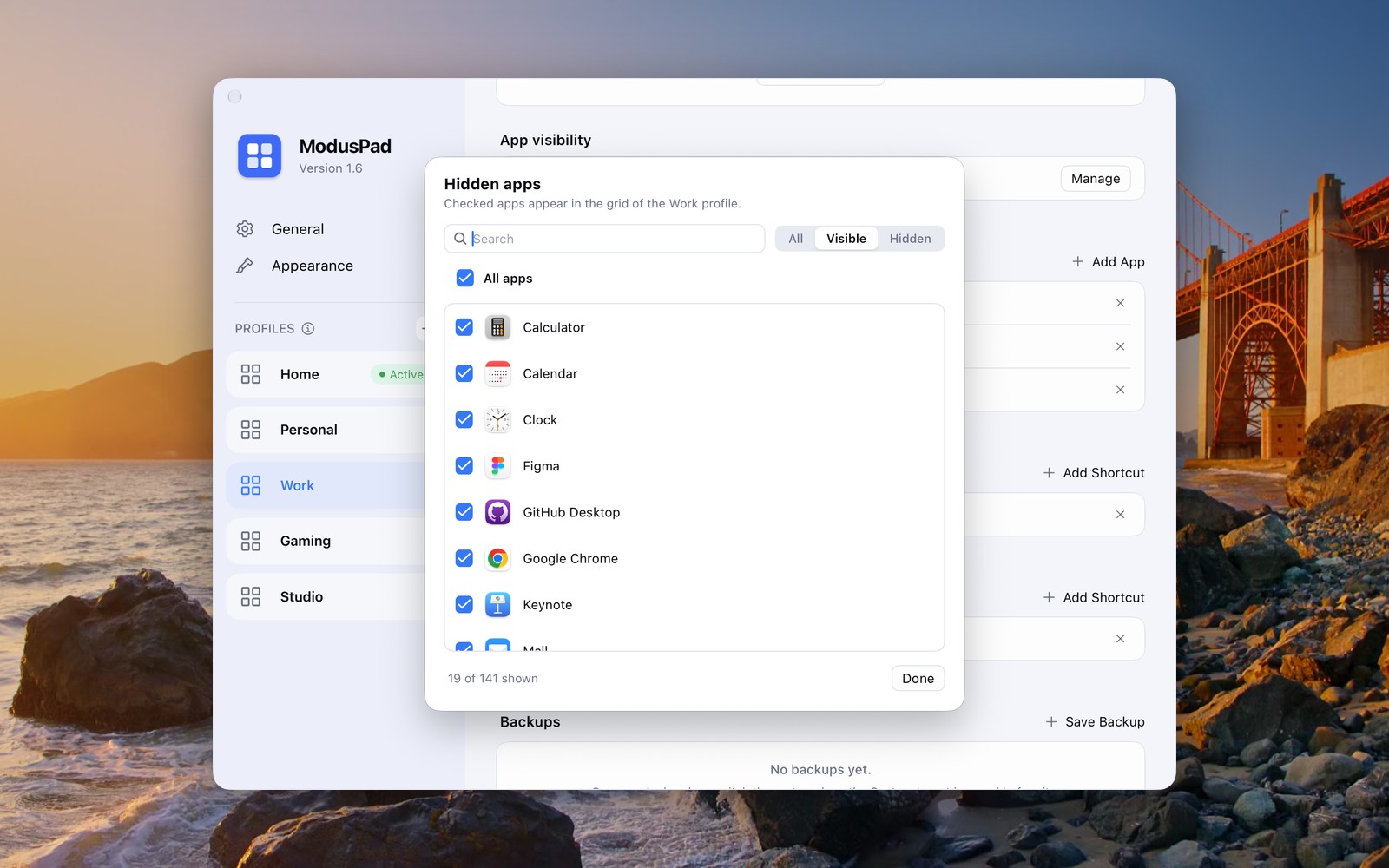
One list per profile. Uncheck what you don’t need there.
The part where the Mac does the work
Profiles are useful. Remembering to switch them is not. I’m a forgetful person who forgets to turn off the stove. I’m not going to remember to change my profile to “Work” every day.
So each profile can have rules, and ModusPad switches for you when:
- a Focus is activated (Work Focus → Work profile);
- a display is connected (plug into the big monitor → Studio);
- the clock says so (Mon–Fri, 9:00–18:00 → Work);
- or you press the profile’s own shortcut, anywhere.
That’s it for now. Other rules are in the works. If there’s a rule you would like to see, write to me at support@moduspad.com.
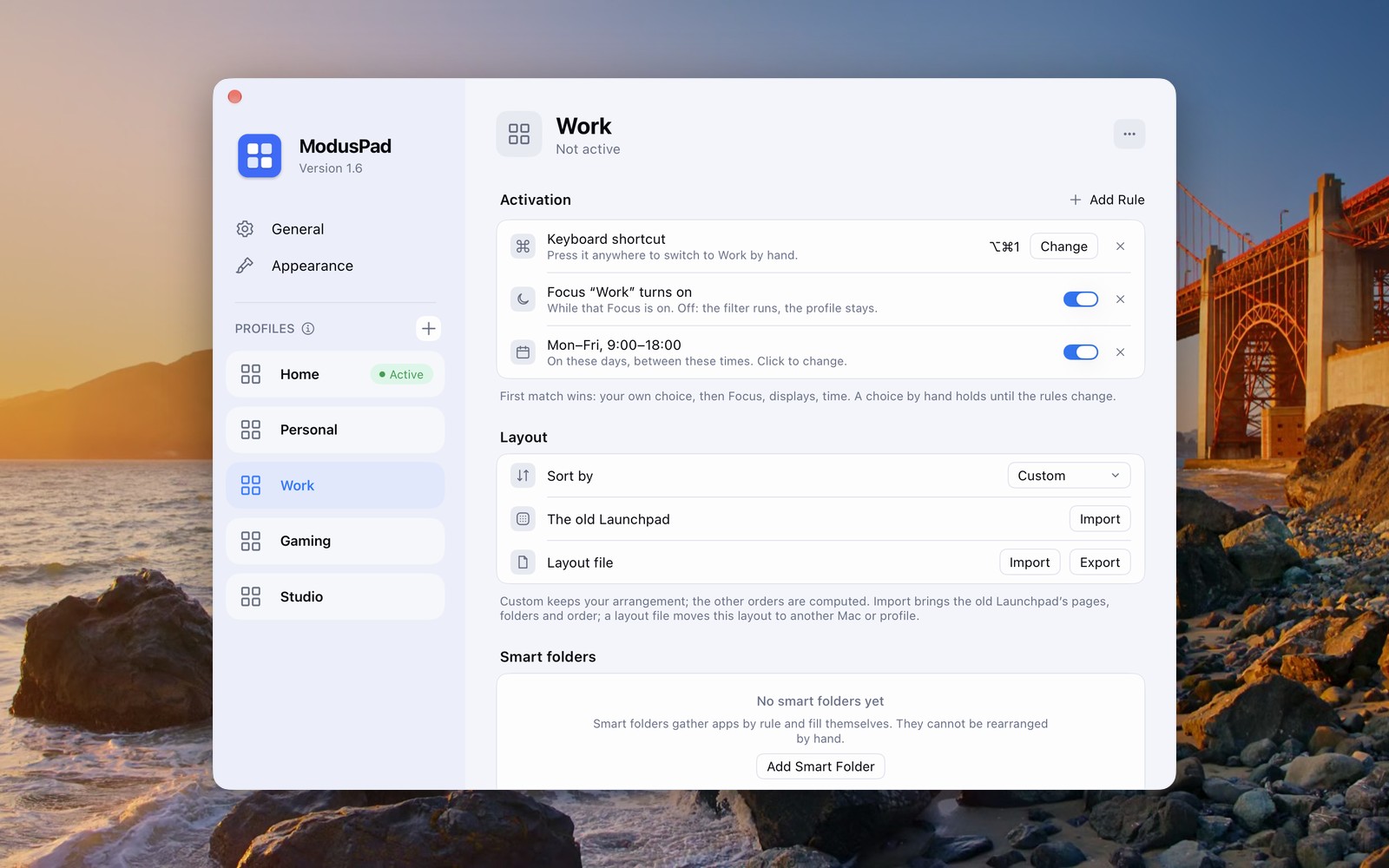
Three rules for Work: a shortcut, a Focus and working hours.
When several rules match, they go in order of priority: your own choice, then Focus, then displays, then time. A profile you pick by hand stays on until the rules actually change. I dislike apps that override my choices, and ModusPad doesn’t.
The best kind of automation is automation that you don’t realize is happening.
A profile isn’t a grid. It’s a whole setup.
This is when it stopped being “a launcher with tabs.” When a profile turns on, it can open the apps you need and run shortcuts from the Shortcuts app. Other shortcuts can run when the profile turns off.
My actual Monday morning routine: I turn on Work Focus. ModusPad switches to the Work profile and opens the team chat, email, and calendar apps. One shortcut opens browser windows related to my work. Another shortcut, called “Work off,” plays music and closes those windows in the evening. I feel pretty futuristic. Maybe a little lazy, but futuristic.
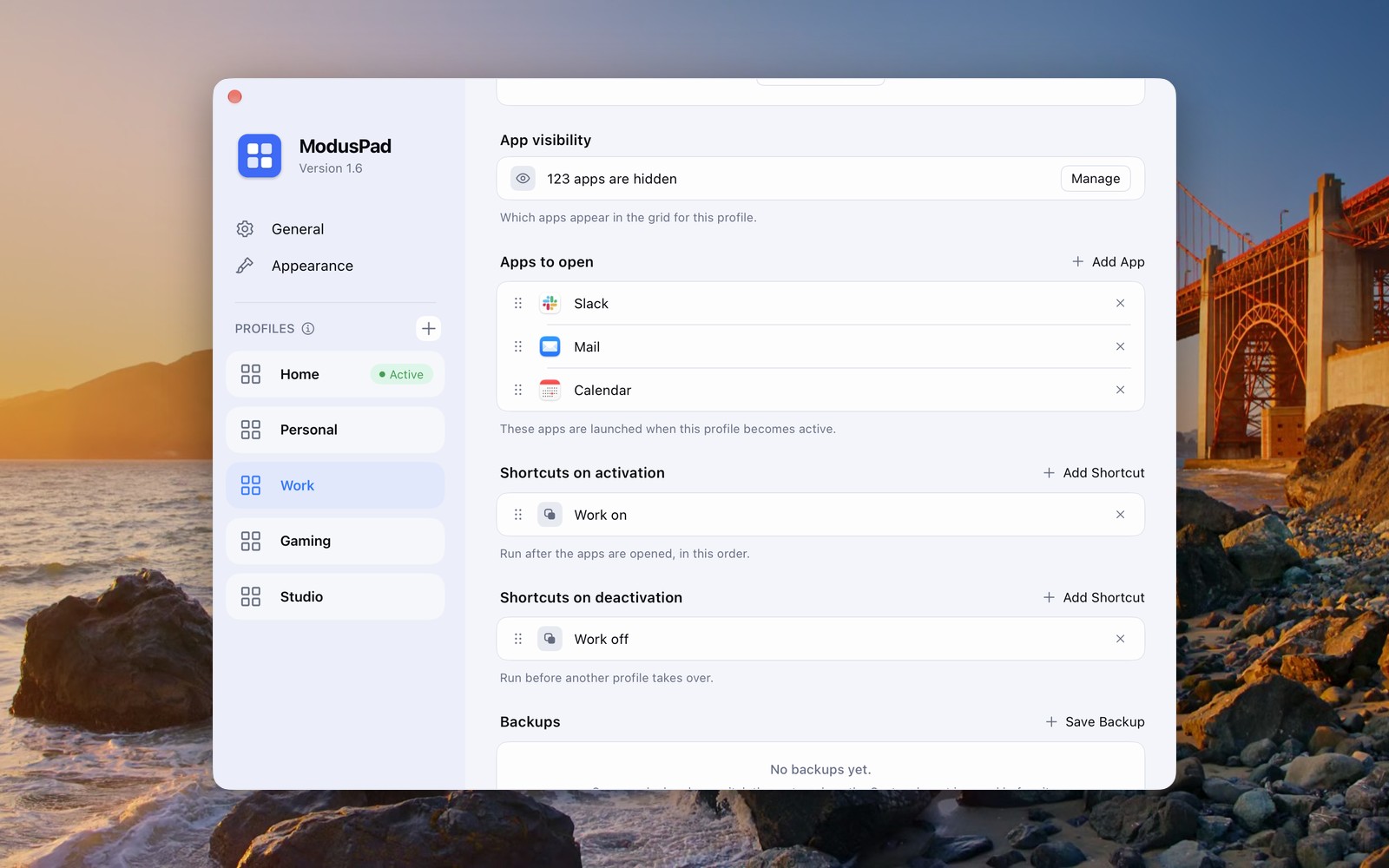
Apps to open, plus shortcuts on activation and deactivation. The rest of your setup follows the profile.
Lights, music, timers, and a specific browser window: if Shortcuts can do it, your profile can trigger it.
No mysterious magic
The primary problem with an automated tool is that something changes and you don’t know why. So when automation switches your profile, a small note under the menu bar icon shows the active profile and the action that caused the change: “Work is on · Work Focus turned on” or “⌥⌘1 pressed”. One glance, and you know what happened.
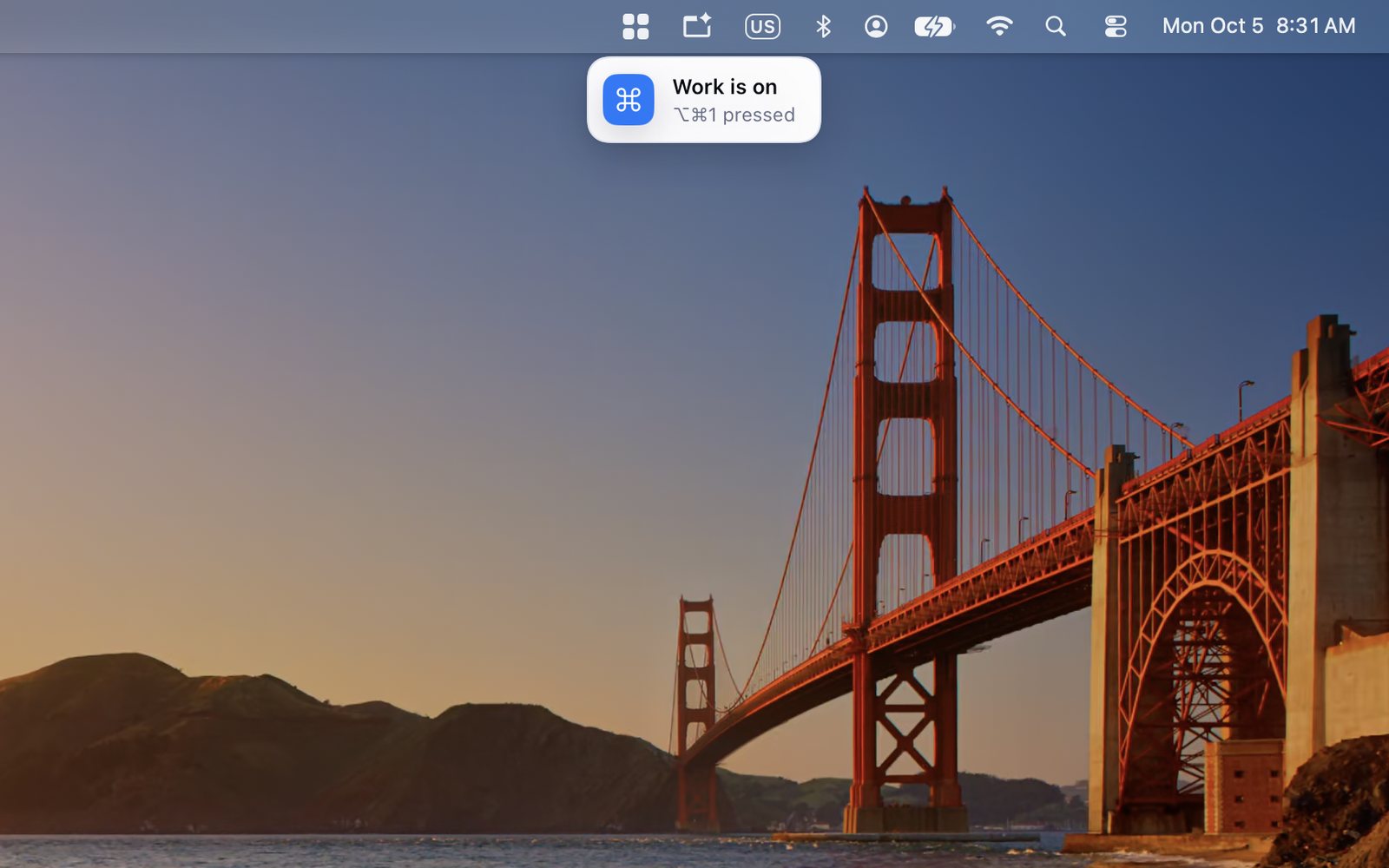
Short, quiet, and gone in a moment.
And to switch by hand, click the current profile next to the search field and pick another one. You can create a new profile there too.
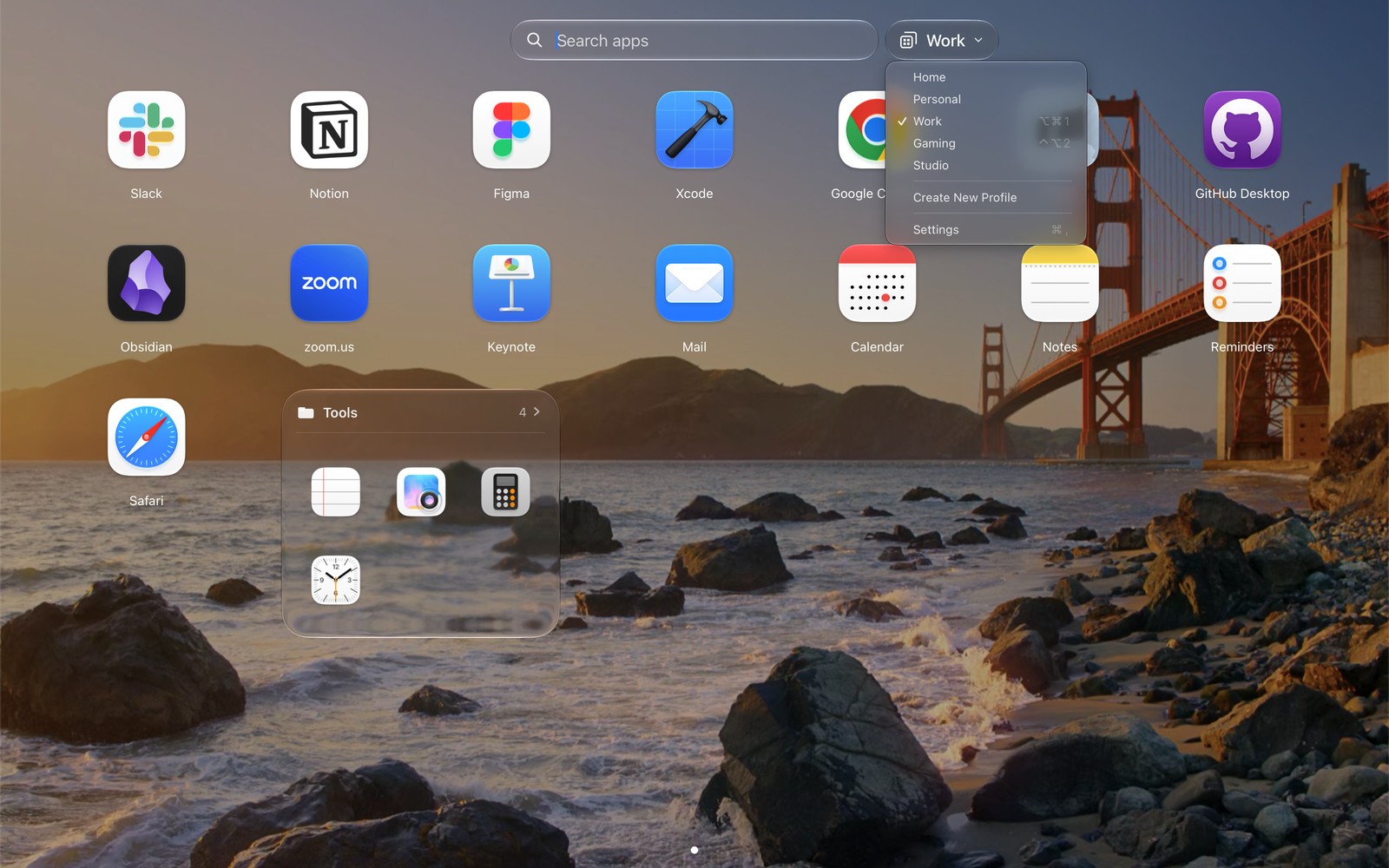
Switching by hand, right in the launcher.
Folders that organize themselves
I like organized folders. I don’t like organizing folders. So ModusPad has smart folders that organize themselves. For instance, apps in the Photography or Video category can go into a folder named “Photo & Video” automatically. Other ways to fill a smart folder include name, version, dates, and how often you launch an app. New photo apps added to your grid will be sorted into the proper folder automatically.
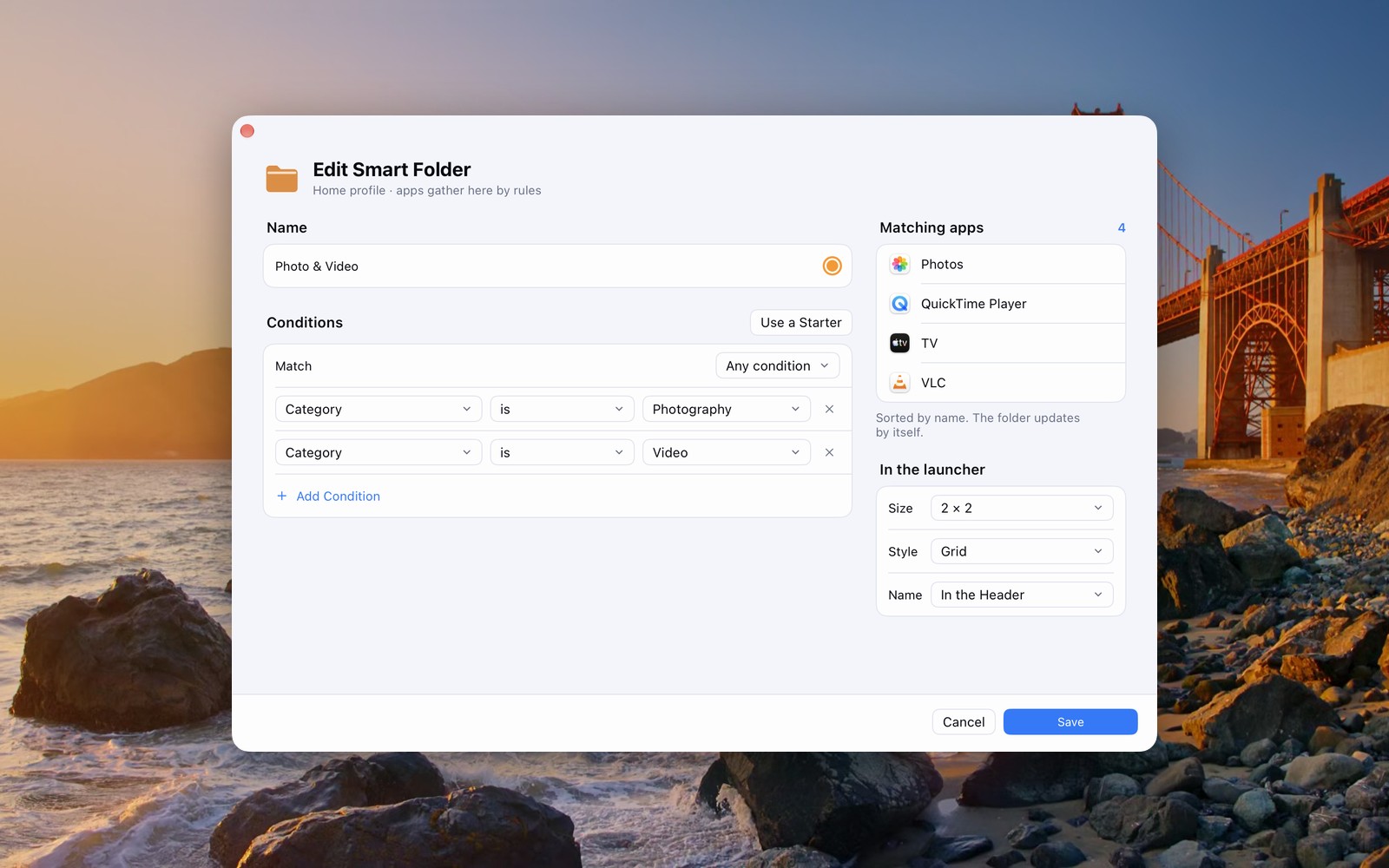
Two conditions, four apps, zero manual sorting. Size, style and name are set right here.
Folders you don’t have to open
Launchpad folders had small icons. You clicked these icons to open them. Compared with Launchpad folders, ModusPad folders can be bigger. Right-click a folder and choose Size: anything from 1 × 1 to 3 × 3 cells. The apps inside appear right on the page, and one click opens an app. The folder itself never has to open.
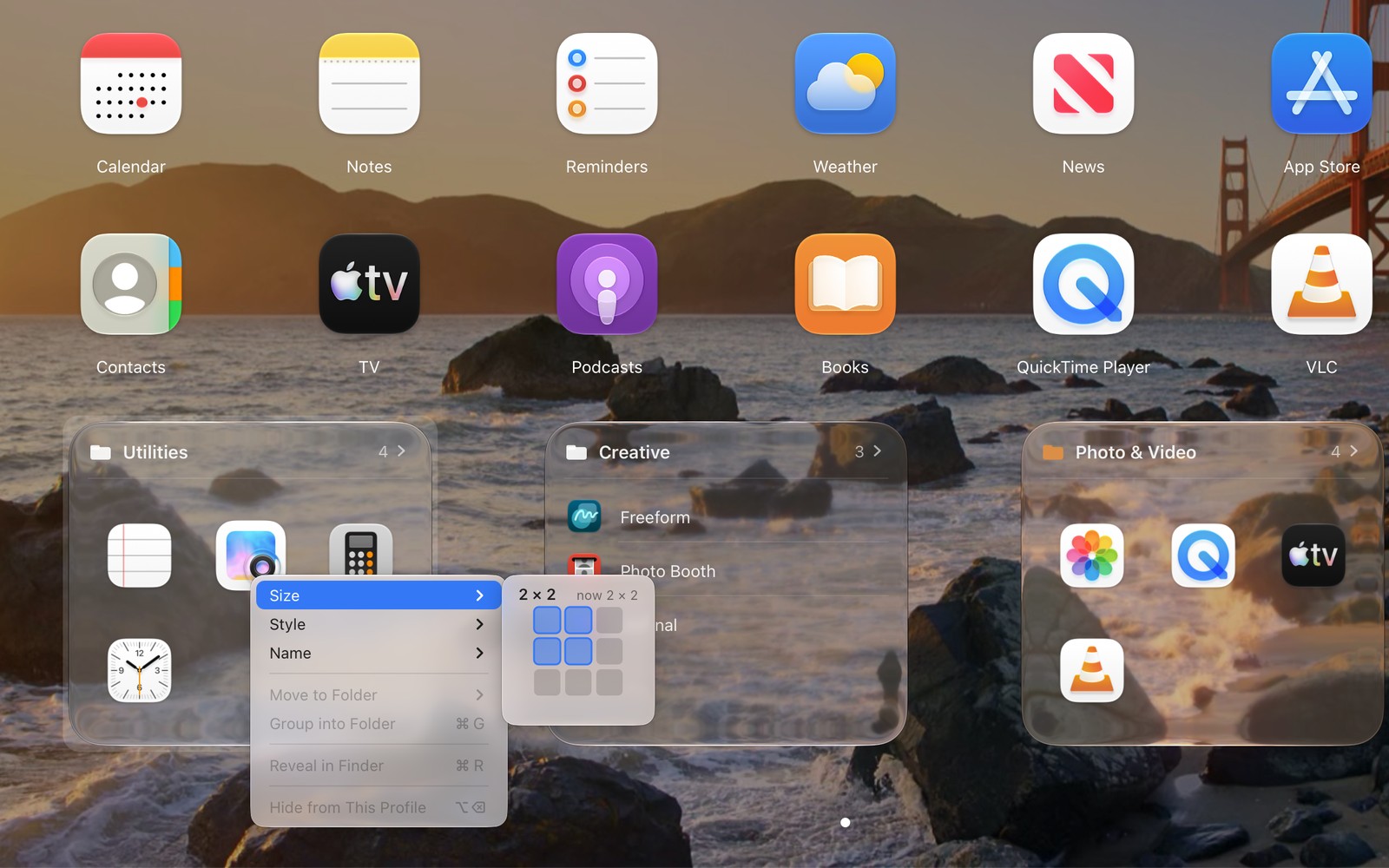
Size, Style, Name. Three folders, three looks, all on one page.
Each folder can have its own look. In Grid view, only icons are shown. In List view, each app takes up one line, and the app name is shown. Folder names can be shown under the folder, like other folders, or in a header at the top of the tile with the number of apps in the folder. Smart folders work in a similar way and can be assigned a color to tint their glass background.
When you do open a folder, it shows up on a sheet of frosted glass with your wallpaper visible behind it.
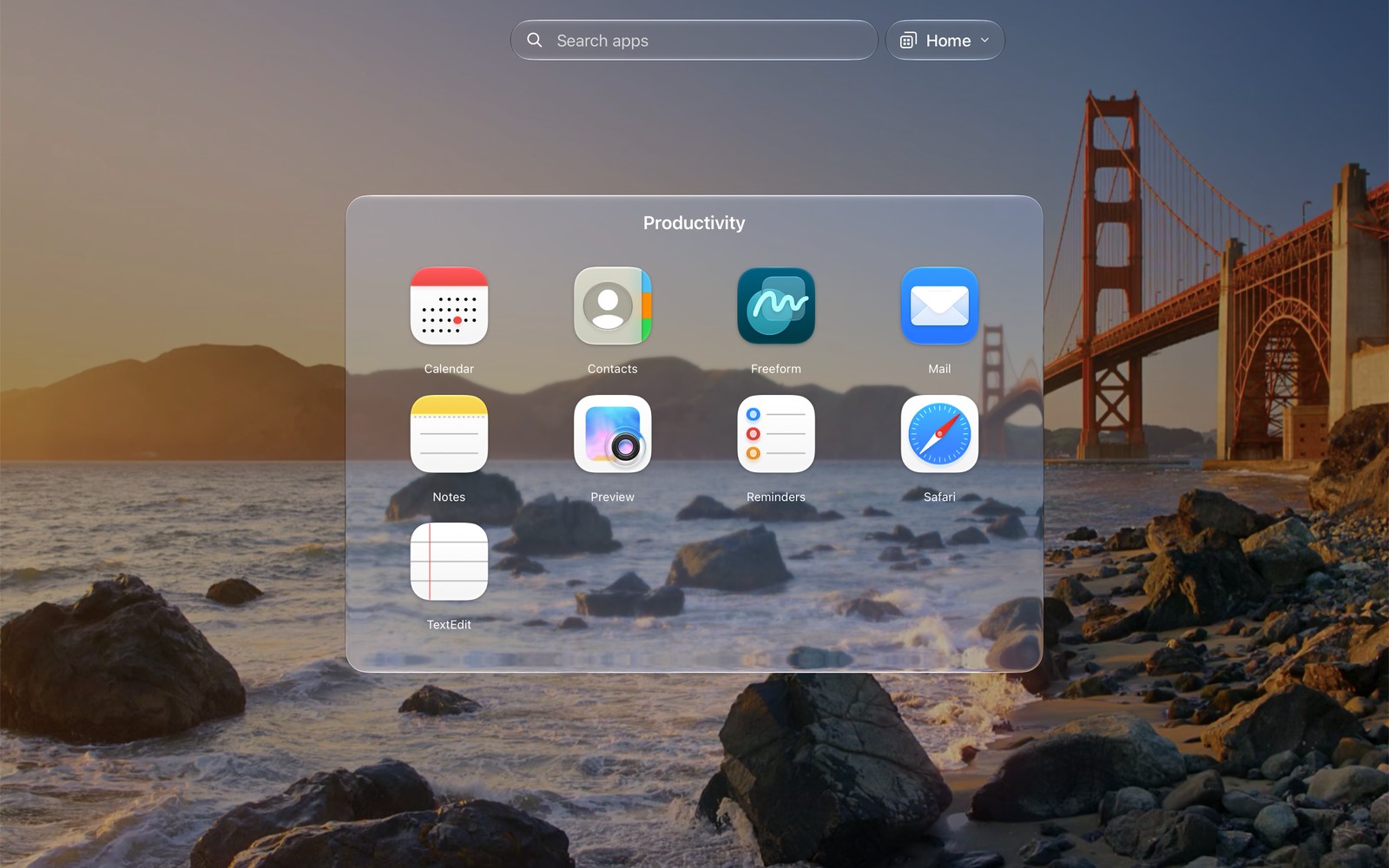
Glass folders. Open, pick, gone.
Recents and Most Used are smart folders too. You can turn them on by right-clicking, and they can be put on any page. You can adjust their size to take up two rows and two columns, so you see the apps you actually use without opening anything.
Two small things I like about it
- New apps don’t land on a random page. Newly installed apps wait in a “New” capsule near the search field until you drag them where you want them, instead of showing up at the end of some page.
- Two versions of the same app? Two tiles, with the app version under the name. Beta testers, you’re welcome.
Other features include options to adjust columns, rows and icon size, to sort apps by name, date or your own order, and to save layout backups, with a backup taken automatically before each sort or import.